
Features
Bandmate follows a song from the first idea to a rough recording. Here's what you can do with it.
The Tour
New to Bandmate? The Tour is a quick look at its core: a song's sections, lines and chords, the timeline with a beat on it, and recording a take. It shows them on a demo song built into Bandmate, which never appears among your songs or beats, or in your backups.
While Bandmate has no songs or folders, the Songs page offers it under Write your first Song: New here? Take the Tour. Once you've written a song or made a folder, the offer is gone, and it's back only if you delete every song and folder. It's on a computer or tablet only: the Tour needs a wide window.
Each step lights up one part of the page and says what it is. The page under it is only for looking at, so a stray click or key changes nothing. Go on with Next or →, and back with Back or ←. End tour or Esc ends it at any step, and Finish at the last: either way, you're back where you took it from.
Your songs
Every song is in one list. Search it by title, filter it by status, tag or whether a song has a finished recording, and sort it by title, status, key, tempo or when you last edited it.
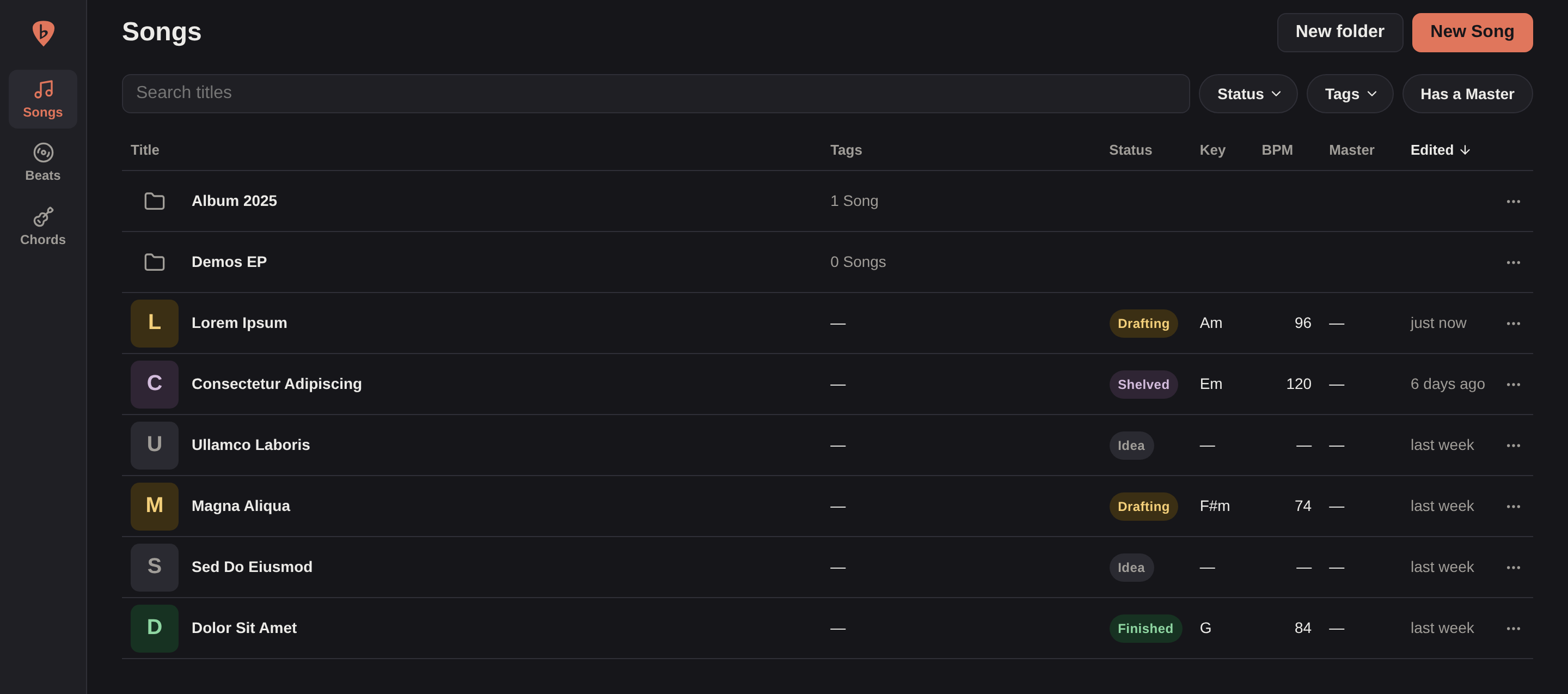
- Folders keep songs together, like an EP's. A song sits in one folder at most: drag it onto a folder, or move it from its menu. Deleting a folder asks whether to keep its songs or delete them too.
- Tags mark songs with whatever matters to you, like "Album 2023", and a song can have as many as you like. Pick several in the filter to see the songs that have all of them.
Write
Write lyrics the way you would in a notebook, with the chords right where you play them.
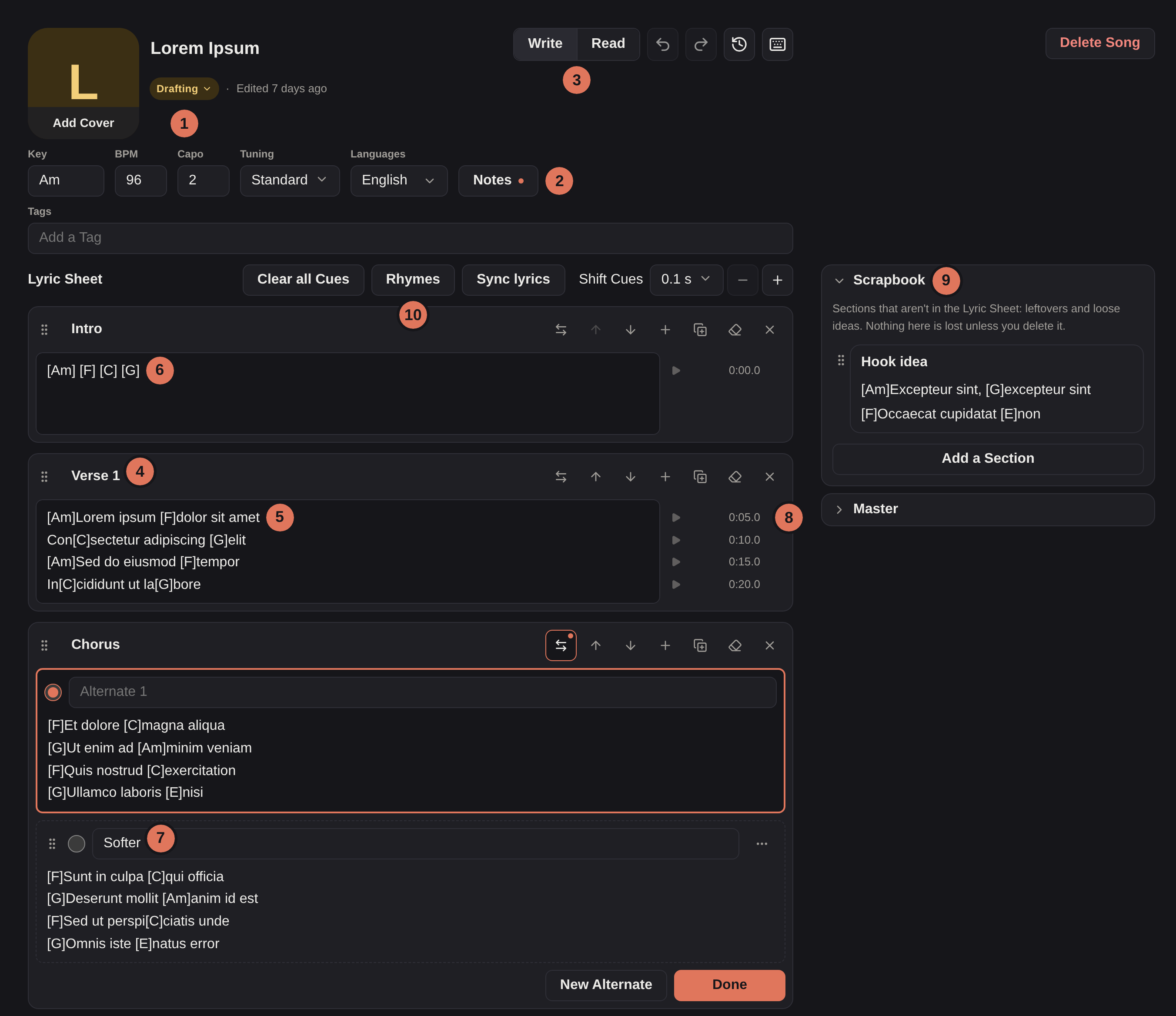
- Status: where the song is at: an idea, a draft, or finished.
- Song details: its key, tempo, capo and tuning, the languages it's sung in, and notes of your own. Languages offers only those Bandmate suggests rhymes in, so others aren't on the list yet.
- Write and Read: Read mode shows the song large and uncluttered, to play from. Finished songs open in it.
- A section: one part of the song, named however you like: a verse, a chorus, a hook. Move sections around, or repeat one wherever it comes back.
- Chords: typed in brackets right before the syllable they land on, even mid-word. Read mode shows them above the words.
- A line of chords alone: for intros, solos and other parts without words.
- Alternates: other versions of a section. Write a few, and pick the one the song uses. The others wait here until you change your mind.
- Line timings: when each line starts in the song, set as you sync. They appear once the timeline has some audio on it: a beat, a take or another sound.
- Scrapbook: sections that aren't in the song: leftovers and ideas to come back to.
- Rhymes: suggestions for the word you're writing. See Rhymes.
And this is Read mode, here on a phone: the chords over the words, and how to play each one at the top. The button at the top right sets the text size, hides or transposes the chords, and shows or pins the chord shapes.
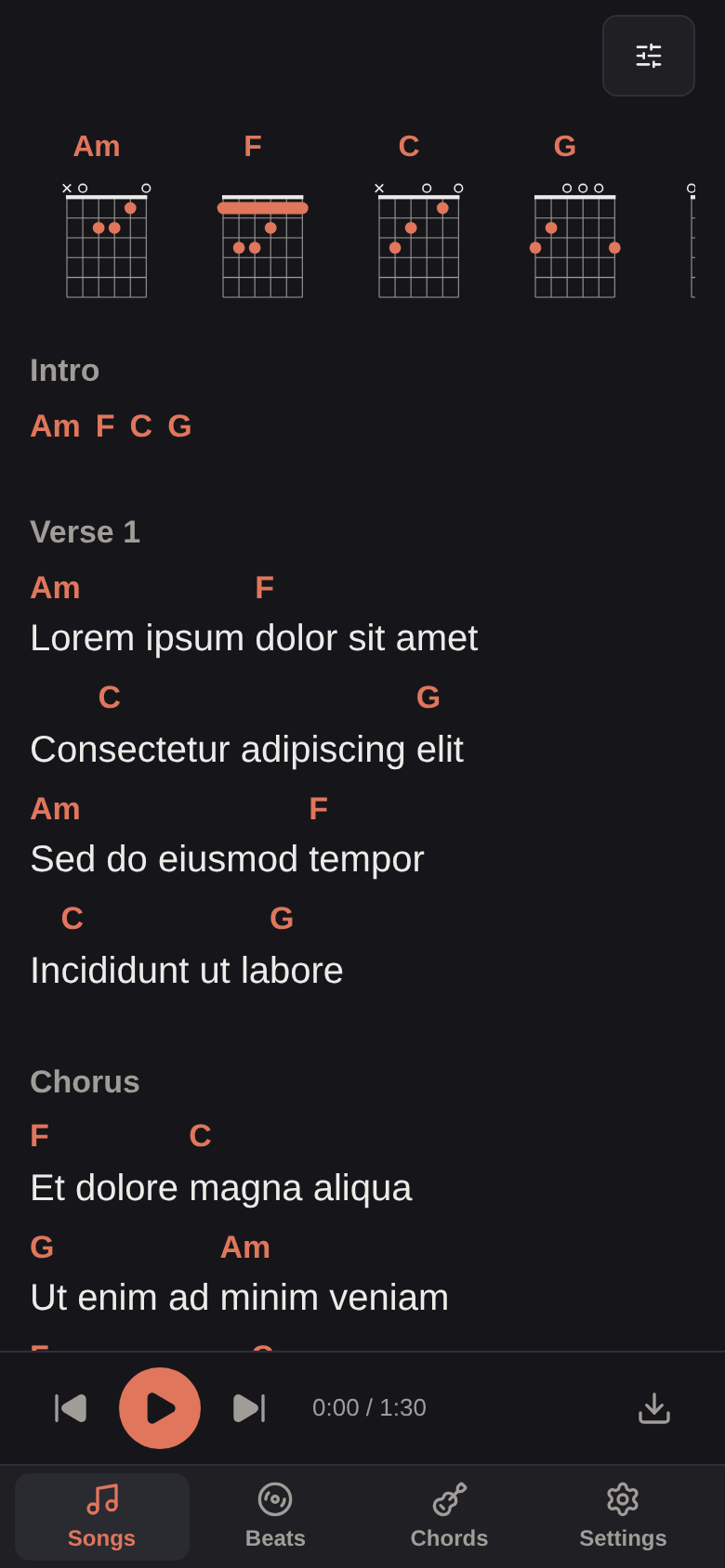
Hover or tap a chord, or tap its shape at the top, to step through the other ways to play it, and prefer one. Press the speaker to hear the shape strummed, in the song's tuning. It plays the shape as you'd finger it, so the capo doesn't change it, and it plays over the song if that's playing.
Rhymes
The Rhymes button suggests rhymes for the word you're writing. It's there on a wide window, like a desktop's, and can't be on while you sync.
- Download a rhyming dictionary for each language you write in, in Settings → Rhyming dictionaries, on each device you write on.
- A song's rhymes are in the languages set in its details.
- Rhymes go by how words sound, not how they're spelt. A word that isn't in the dictionary, like a made-up one, gets none.
Want rhymes in your language? See Adding a rhyming language.
Snapshots
Bandmate keeps copies of a song's lyrics and Scrapbook as they were, on its own, so you can get back to how a song was before you changed it. It takes one each time you start editing again after 10 minutes or more away, unless nothing has changed since the last. It also takes one just before you delete a section from the Scrapbook, or one of a section's alternates, marked with what you deleted, such as "Before deleting “Verse 3”". Deleting doesn't ask first: Undo brings it back while you're still on the song, and restoring that Snapshot does after you've left.
In Write mode, the clock button beside Write and Read opens them, newest first. Pick one to see its lyrics and Scrapbook beside the song as it is now, line by line, so it's plain what restoring it would change: a line that differs is highlighted on both sides, and a section that's only in the Snapshot, or only there now, shows on its side alone. Lines show their chords above the words, as Read mode does. Where there isn't room for both side by side, such as on a phone, This Snapshot and Now are two tabs. Step to the one before or after with ‹ › or the ↑ ↓ keys. You can select and copy a line from it, to take back just that line.
Snapshots thin out as they age, so months of history stay short enough to look through: every one from the last day stays, then one a day for a month, then one a week. A day is yours, where you were writing, so a late-night session counts as one day wherever you are. The list is grouped the same way: the last 24 hours, then daily, then weekly. To keep one for good, such as the version you played at an open mic, press the lock beside it to Keep it, and it's never thinned. Press the lock again to let it thin out like the rest.
Restore this Snapshot makes your lyrics and Scrapbook the Snapshot's. What you have now is kept as a Snapshot first, marked "Before restoring", so you can go back, and Undo takes the restore back too. Lines that are still there keep their timings as they are now, and lines it brings back get the timings they had.
A Backup of a song holds its Snapshots, kept or not, so restoring the Backup, here or on another install, brings them back too.
Chords
The Chords page, in the side bar, helps with chords away from any song, on guitar, in standard tuning or any other.
- Look up a chord by name, like Cmaj7 or D/F#, and see the ways to play it, best first. Press the speaker to hear one strummed, in the tuning you picked. Prefer one, and that's the shape Read mode shows you.
- Name it: put your fingers on the fretboard, and Bandmate tells you which chord you're playing. Press the speaker to hear the shape strummed, even one that isn't a chord.
- Suggest: pick a key, and see the chords that belong in it, the ones borrowed from other keys, and what usually comes after a chord. Each one shows a way to play it: the one you prefer, or else the best. Press the speaker to hear it strummed. More Voicings opens it in Look up, with the other ways.
- Beside each speaker, the rising bars arpeggiate the shape: they play it one string at a time, low to high, so you can hear each note.
- Left-handed? Turn it on in Settings, under This device, and every diagram flips, the fretboard too.
Listen
Keep the music you write to in one library, and use it in any song.

- Add a beat: upload a file, or download one from a link.
- Search and filter: by title or producer, key, tempo, or whether a song uses it.
- A beat: press ▶ to hear it.
- Its producer, kept with the beat as its credit.
- The songs that use it.
- Edit it: its title, credit and details.
You can also attach a song's finished recordings, made elsewhere, to listen back to.
Beats from a link
Paste a link to a video or track on YouTube, SoundCloud, Bandcamp or any other site yt-dlp supports, and Bandmate downloads its audio into your library, with the credit filled in.
- It takes one video or track at a time, not playlists or live streams, up to 500 MB unless you change it.
- If a site stops working, open Settings → About and press Update beside yt-dlp, the downloader Bandmate uses. You don't need to wait for a new Bandmate.
Timeline

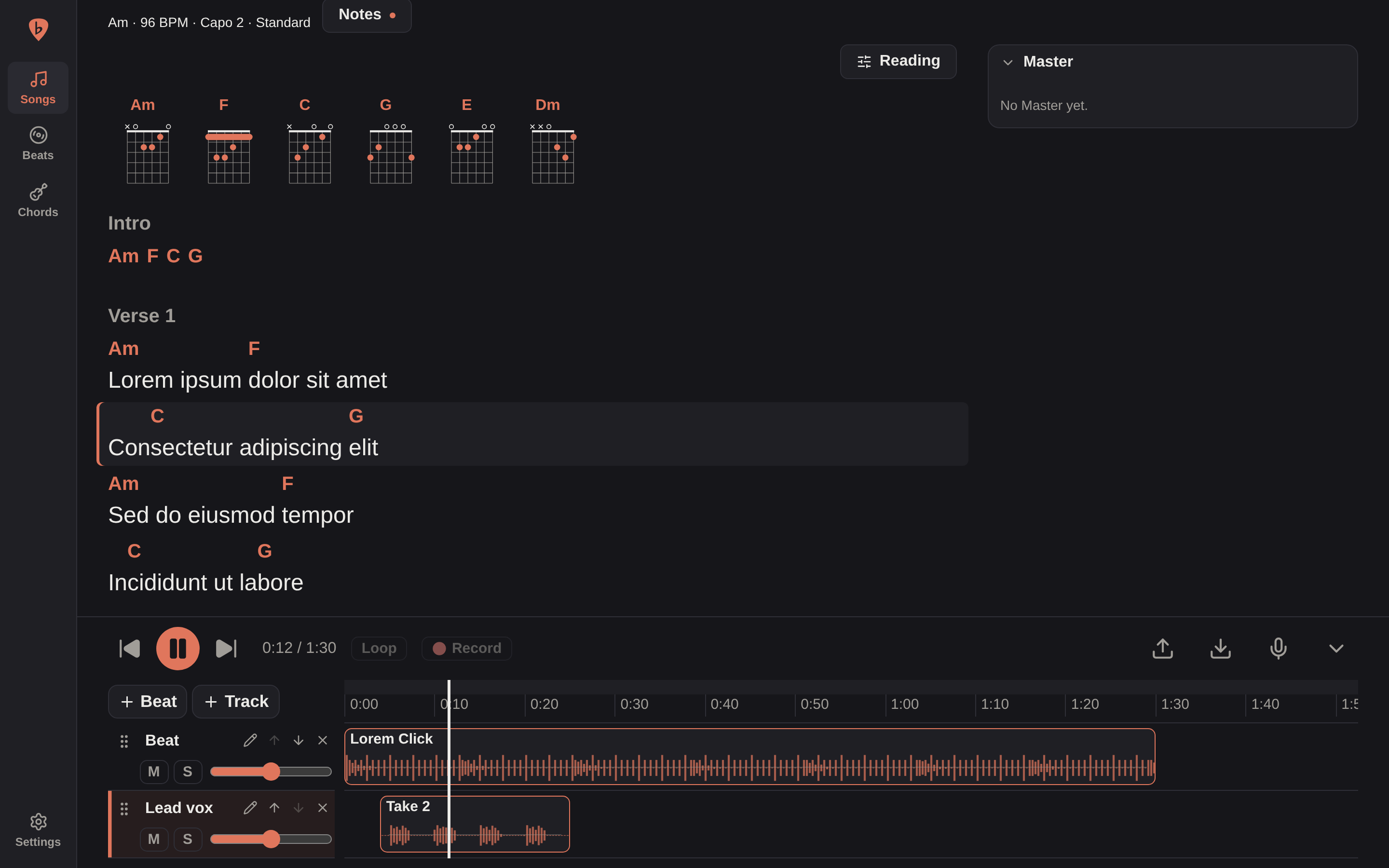
Every song has a timeline: its beat, your takes and any other audio, laid out on tracks and played together.
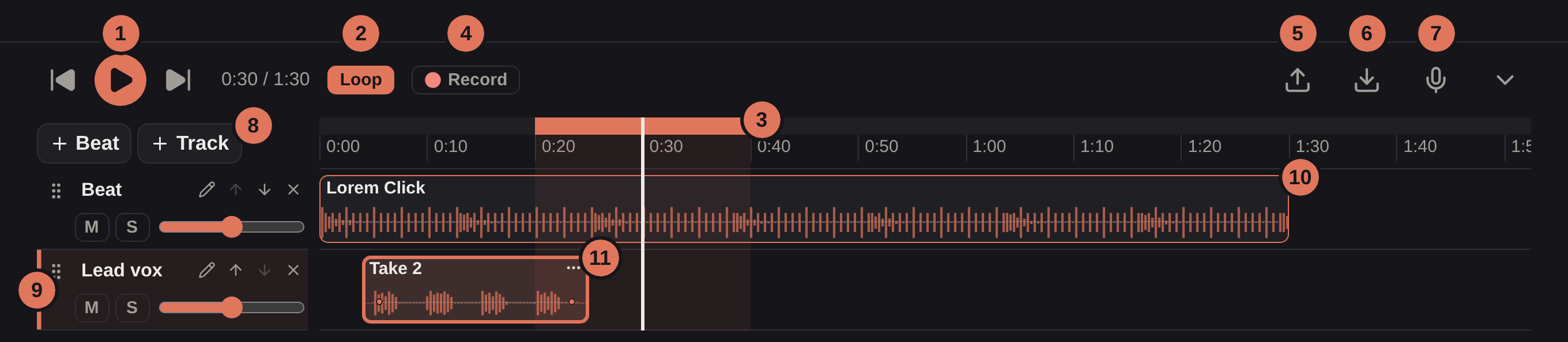
- Play, or jump to the start or the end. Click the ruler to move the playhead.
- Loop: repeat a stretch while you write or rehearse.
- The stretch it repeats: drag along the top of the ruler to set it.
- Record a take, see Record.
- Import audio: add an audio file to the highlighted track. Dropping a file onto a track does the same.
- Mix down: download the song, or its loop, as one audio file.
- Input: pick the input you record from, see Record.
- Add a beat from your library, or a track.
- A track, with its own volume, mute and solo. New takes go on the highlighted one: click a track's name to choose it.
- A beat: drag it to move it, or its ends to trim it. The file itself is never changed.
- A take, selected. Its ⋯ menu records it again or picks another take, see Record.
In a narrower window, Import audio, Mix down and then the input fold into a ⋯ at the end of the row, which lists just the ones that don't fit; the input is Record from… there. On a phone held upright, the timeline only plays, and offers just Mix down.
Undo and Redo are at the top of the song's page, beside Write and Read. Undo takes back your latest change to the song, one at a time, whether to its sections, alternates and Scrapbook, the timeline or a line's timing, and Redo makes it again. They work in Read mode and on a phone too, even on a change you made in a wider window, until you leave the song. While you record a take, or a merge is being made, they're off. Undoing a change to the lyrics stops syncing.
Typing in a section's lines, its label or an alternate's name can be undone once you leave the box: everything you typed there, from clicking in to clicking out, comes back as it was in one go. While you're still in the box, Ctrl+Z undoes your typing a bit at a time, as in any text box. Clicking Undo while you're typing takes back what you've typed since you clicked in.
A clip's ⋯ menu sets its tempo and pitch, each on its own or both together: slow a beat down to write over it, or move it a couple of semitones to suit your voice. Select several clips to change them all at once. The file itself is never changed, so you can always set them again, or reset them.
Zoom in with Ctrl and the scroll wheel, or by pinching.
Sync
Line your lyrics up with the music, so you always know where you are.
- Tap along as the song plays to mark when each line starts, or type the times in.
- As it plays, the current line lights up and the lyrics scroll along with it.
- In Read mode, tap a line to play the song from there.
- Moved the beat? Shift every timing at once.
Record
Sing over your beat, right in the browser, in full quality.
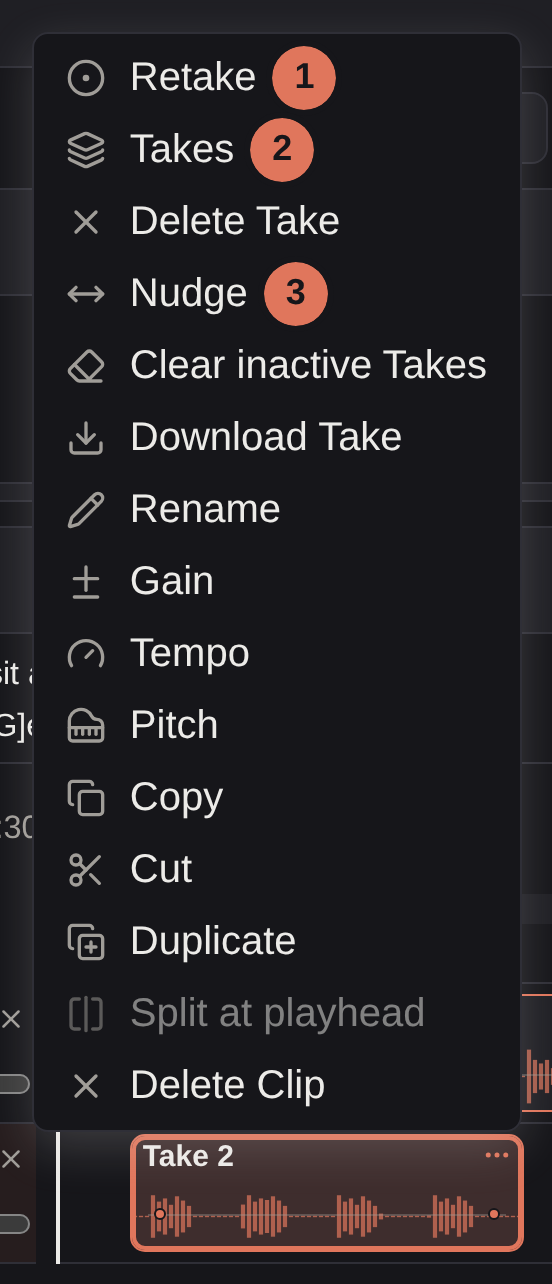
- Retake: record the part again. Every take is kept. If you've changed the clip's tempo or pitch, reset them first.
- Takes: choose the take the song plays.
- Nudge: shift a take by a few milliseconds, so it sits on the beat.
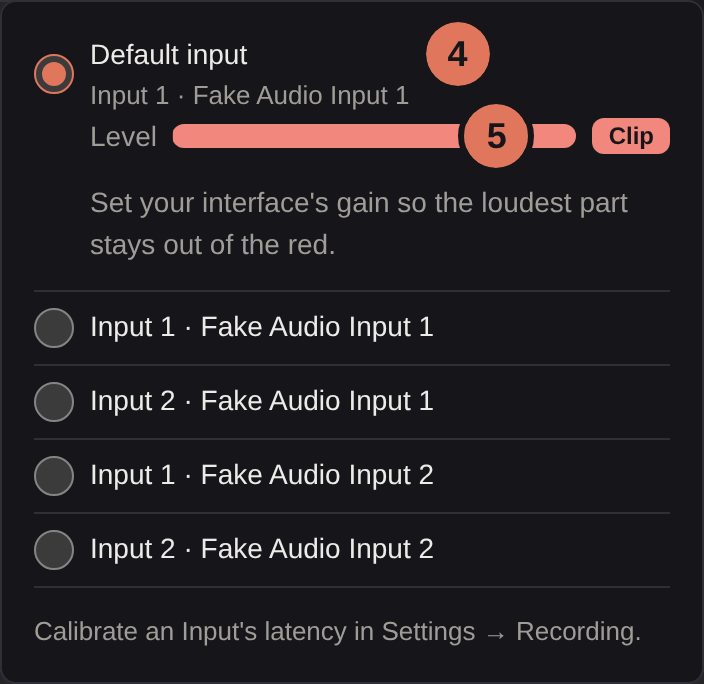
- Input: every input connected to this device, each channel of an audio interface on its own, its channel first. Pick the one you record from. Each device remembers its own.
- Level: of the input you picked. Sing your loudest, and keep the meter out of the red. Here it's in the red, from a test tone.
The take menu is the ⋯ on a take. The inputs to record from are behind the timeline's mic button, at the end of its row, or Record from… in the timeline's ⋯ when the window's too narrow for it.
INFO
Recording only works when you open Bandmate on localhost or over HTTPS: browsers don't allow the microphone anywhere else. See Security for putting Bandmate behind HTTPS.
Calibrate
Calibrate each input in Settings → Recording, so your takes land on the beat. There are two ways:
- Hands-free, the most accurate: rest your headphones on the mic and turn the volume up, and the mic hears the clicks itself.
- Tap along: tap or clap on the mic in time with the clicks.

If you know an input's latency already, you can Type it in instead, though measuring it is more accurate. Bandmate also offers to calibrate before your first take on an input.
Keyboard shortcuts
On a song's page, press ?, or the keyboard button by Write and Read, to see every shortcut. Type in the search at its top to find one by what it does or by its keys, like "split" or "Space", or press Change keys for Settings → Shortcuts, which lists them too. The ones you'll use most:
| Keys | What they do |
|---|---|
| Space | Play or pause |
| R | Record a take, or stop |
| Ctrl+Z, Ctrl+Shift+Z | Undo, redo |
| Home, End | Go to the start or the end |
| S | Split a clip at the playhead |
| Ctrl+C, Ctrl+X, Ctrl+V | Copy, cut and paste clips |
| Delete | Delete the selected clips |
| Enter | In Sync mode, mark the next line as starting now |
| Ctrl+scroll | Zoom the timeline |
These are the defaults. To change a shortcut's keys, open it in Settings → Shortcuts: click one of its keys and press the one you want, or Add key to give it another, or remove a key with its ×. Esc cancels. For a mouse shortcut, like Ctrl+click or Shift+drag, choose which of Ctrl, Alt and Shift (⌘, ⌥ and ⇧ on a Mac) you hold, at least one: the click, drag or scroll stays as it is, and pinching always zooms. A key another shortcut already has is refused, with a link to that shortcut so you can free the key there first, and so are keys the browser or the page needs, like Tab or Ctrl+W, and Shift alone with the scroll wheel, which scrolls the timeline sideways. Reset puts one shortcut back, and Reset to defaults puts them all back. Your keys are kept on each device, so each keyboard you use can have its own.
On a Mac, ⌘ works wherever Ctrl does.
Backups
Keep copies of your work, and move it between installs.
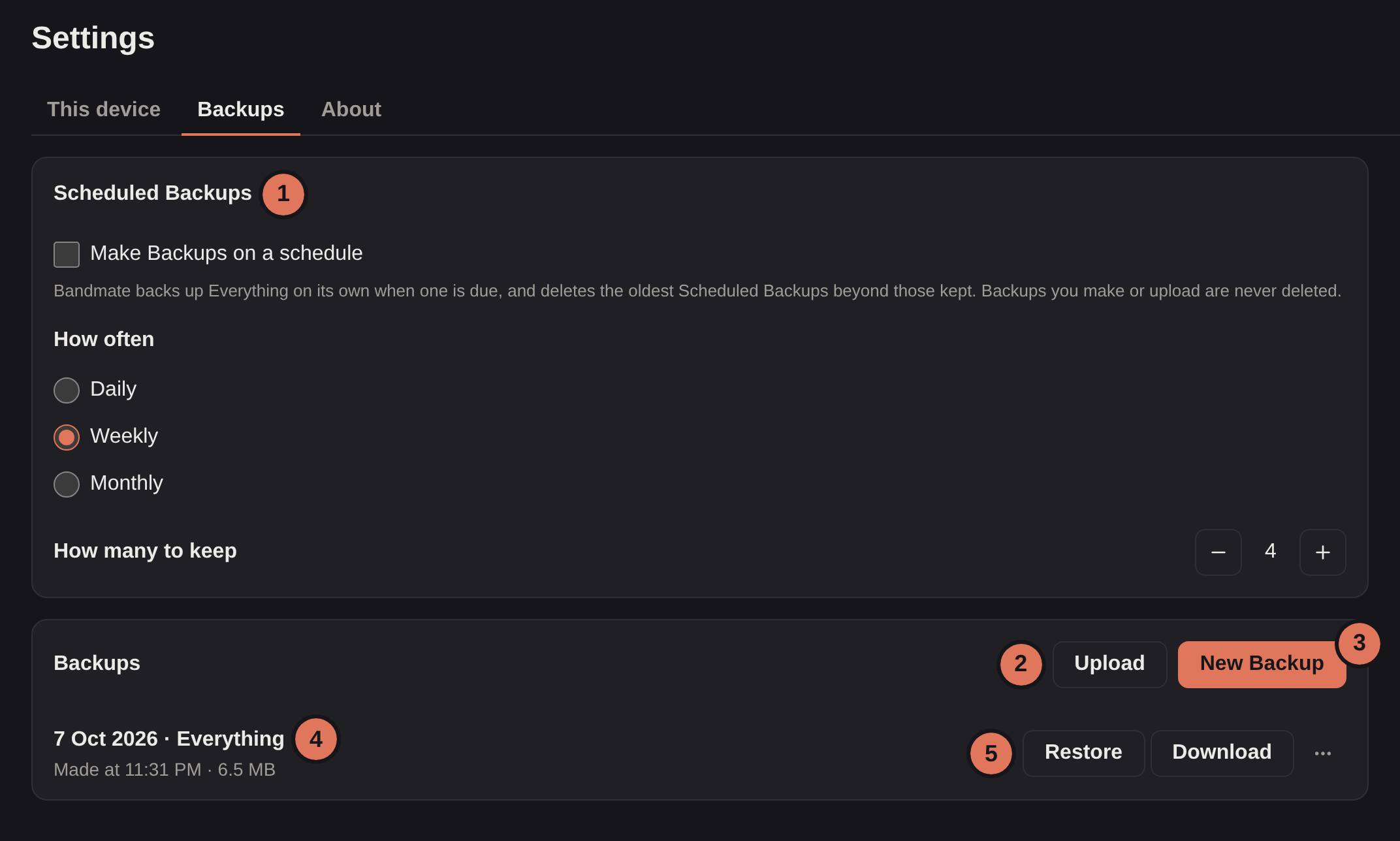
- Scheduled Backups: have Bandmate back up everything on its own. See below.
- Upload a Backup, made by this Bandmate or another.
- New Backup: of the songs you choose, your beat library, or both.
- A Backup, with when it was made and its size.
- Restore what you pick from it, or download it to keep it somewhere safe. Where a song is already here, you choose to replace it or keep both. On a phone, Restore and Download are in the Backup's ⋯ menu.
A Backup restores into the same version of Bandmate or a newer one. To copy everything at once, see copying the data folder.
Scheduled Backups
Turn on Make Backups on a schedule, choose daily, weekly or monthly, and Bandmate backs up everything on its own, each time that long has passed since its last Scheduled Backup. The first is made as soon as you turn the schedule on. Turning it off and on again doesn't make an extra one: the next still comes a day, week or month after the last. If Bandmate was off when one came due, it makes one when it starts, just one however long it was off. If nothing has changed in your Songs or Beats since the last one, and you haven't deleted it, Bandmate skips it, so a quiet month doesn't push out older Backups that differ, and looks again a day, week or month later. The schedule is the same from every device.
Each is marked Scheduled in the list, and you can restore, download, rename or delete it like any other. Bandmate keeps only the newest Scheduled Backups, as many as you choose from 1 to 30, and deletes the oldest when a new one is made. Backups you make or upload are never deleted. Choosing fewer, or turning the schedule off, deletes nothing at once: the extras go when the next one is made.
To hold on to a Scheduled Backup, say one from before a big change, choose Keep in its ⋯ menu. It's then like a Backup you made: no longer marked Scheduled, not counted among those kept, and never deleted unless you delete it.
Under the settings, the card says when the last Scheduled Backup was made, that nothing has changed since, or that there's nothing to back up. If one couldn't be made, for example because the disk is full, the card says why, as does Bandmate's log. Fix the cause and Bandmate makes it at its next try, within the hour.
Settings
Settings, at the foot of the side bar, has four tabs:
- This device: what each device keeps for itself.
- Appearance: three colour palettes, Terracotta (the default), Ink and Olive, each in light and dark. Follow your system's light or dark, or pick one. More palettes may come.
- Recording: every input on this device, each channel of an audio interface on its own, with its latency or "Not calibrated" or "Skipped". Pick the one you record from, and check its level with Test input above the list: Bandmate only listens while it's on, and asks for the microphone the first time. Open any of them to calibrate it as in Calibrate without recording from it, or type its latency. Inputs that aren't plugged in keep their latency, listed under Not connected, to forget.
- Rhyming dictionaries: one for each language Bandmate suggests rhymes in, each with its download size. Download the ones you write in, so Rhymes can suggest words in them, or remove one you no longer need.
- Chord diagrams: flip them for left-handed playing.
- Shortcuts: every keyboard shortcut, with its keys. Open one to see what it does and where it works, and to change its keys, or search them as in the shortcuts list. Shown only on a bigger screen.
- Backups: see Backups.
- About: the version you're running, what changed in it, whether a newer one is out, the yt-dlp in use, and the packages and data that ship in Bandmate, with their licenses.
What's next
Ideas for Bandmate's future are on the roadmap. It's a wishlist, not a queue: nothing on it is promised, and it isn't in the order things will be built. What each version added is in the release notes.